Efficient inventory management is crucial
Efficient inventory management is the backbone of any successful small or medium-sized enterprise (SME). Whether you’re managing perishable goods, serialized items, or products requiring strict quality control, Odoo ERP offers a powerful and scalable solution to help streamline your operations.
For SMEs, learning how to import stock with lot or serial numbers in Odoo is critical to maintaining accuracy, meeting customer expectations, and ensuring compliance. This comprehensive guide walks you through the process, offering tips, best practices, and real-world insights to help you maximize your Odoo ERP system.
Why SMEs Need Efficient Inventory Management

Poor inventory management can result in significant losses for SMEs. Studies show that businesses lose an average of $1.1 trillion annually due to inventory distortions such as overstocking, stockouts, and shrinkage.
For SMEs, these challenges are even more acute:
- Limited budgets make errors costly.
- Manual processes are time-consuming and prone to mistakes.
- Scaling operations can quickly overwhelm existing systems.
This is where Odoo ERP comes in, offering advanced inventory tracking tools like lot and serial number management to help SMEs operate efficiently.
Efficient inventory management ensures businesses minimize errors, avoid stockouts, and meet customer demands promptly. SMEs often face challenges like limited resources, manual errors, and inefficiencies in tracking stock. By leveraging Odoo's robust inventory management system, businesses can automate processes and maintain real-time accuracy.
The Role of Lot & Serial Numbers

Lot and serial numbers play a vital role in inventory traceability, quality control, and compliance. Whether tracking batches of products or individual items, these identifiers provide the precision SMEs need to ensure accountability and meet industry standards. Before diving into the importation process, let’s clarify the purpose of lot and serial numbers:
Lot Numbers
- Definition: A lot number is assigned to a batch of products manufactured or received together.
- Use Case: Ideal for businesses dealing with perishable goods (e.g., food, cosmetics) that require batch-level tracking.
- Example: A dairy company assigns a lot number like "LN123" to all milk cartons produced on the same day.
Serial Numbers
- Definition: A unique identifier assigned to a single item.
- Use Case: Perfect for high-value or regulated products requiring individual tracking, such as electronics or pharmaceuticals.
- Example: A tech retailer uses serial numbers like "SN456789" for each smartphone sold.
Both lot and serial numbers are critical for traceability, ensuring accountability across the supply chain and compliance with industry standards.
Preparing to Import Lot/Serial Numbers in Odoo
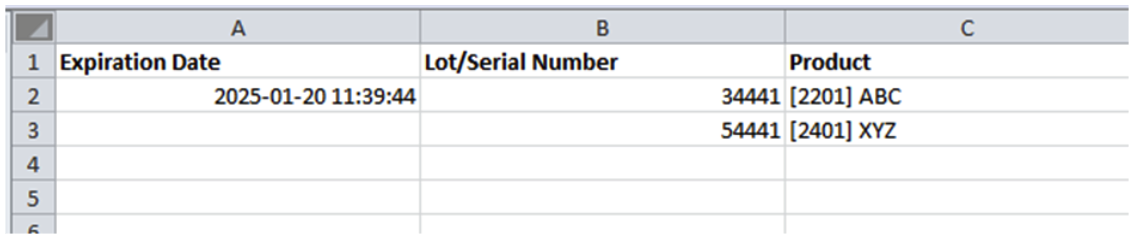
Prepare the Import Template
A well-structured template is essential for a smooth import process.
Before diving into the import process, it’s essential to prepare your data accurately. Here’s how:
- Use Standard Fields:Include key fields like Product Name, Lot/Serial Number, Expiration Date, and Alert Date. Ensure column names align with Odoo's field names to enable automatic mapping.
- Download a Sample Template: Odoo allows you to download sample templates directly, which can serve as a guide.
- Double-Check Data: Validate your data for accuracy to avoid errors during import.
Key Tip: Keep Quantities Separate
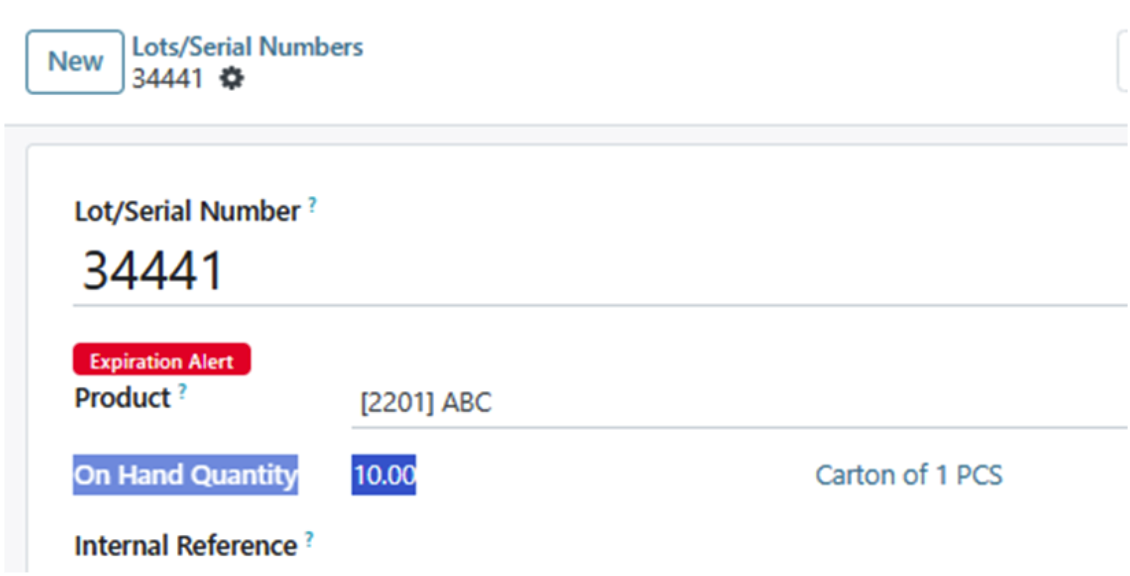
It’s important to note that you cannot import quantities alongside lot/serial numbers. Quantity updates require a separate process using the physical inventory template.
How to Import Lot/Serial Numbers in Odoo
Once your template is ready, follow these steps to import lot or serial numbers:
- Navigate to Inventory Module:
- Go to Products → Lot/Serial Numbers.
- Click the gear icon and select the Import Records option.
- Click Load File, then choose your prepared import template.
- Ensure the column names are mapped correctly to Odoo fields.
- Test the data by clicking the Test button. If the data is valid, you’ll see the message: “Everything seems valid.”
- Click Import to complete the process. A confirmation message, such as “2 records successfully imported,” will appear in the top-right corner.
Example: After importing, a lot/serial number like "34441" will be successfully recorded with all relevant details (excluding quantity).
Importing Physical Inventory in Odoo
To update stock quantities for specific lot or serial numbers, a separate process is required. Follow these steps:
Step 1: Prepare the Physical Inventory Template
Include fields such as:
- Product Name
- Lot/Serial Number
- Quantity

Step 2: Import Physical Inventory
- In the Inventory Module, navigate to Operations → Adjustments → Physical Inventory.
- Click the gear icon and select Import Records.
- Load your prepared physical inventory template file.
- Verify data accuracy by clicking the Test button.
If the data is valid, click Import. You’ll receive a confirmation message upon successful import.
Best Practices for Data Importation
-
Double-Check Data Accuracy
Incorrect or incomplete data can lead to import errors. Always validate your template before uploading. -
Use a Step-by-Step Approach
Break the process into manageable steps—import lot/serial numbers first, then update quantities using the physical inventory template. -
3. Leverage Odoo’s Support Features
Odoo offers helpful tools like sample templates and error logs. Utilize these resources to troubleshoot issues and ensure smooth imports.
Benefits of Using Odoo for Inventory Management
Odoo's inventory module offers SMEs unparalleled flexibility and efficiency:
- Automation: Reduce manual errors with automated processes.
- Real-Time Tracking: Monitor inventory status in real-time for better decision-making.
- Scalability: Scale your operations seamlessly as your business grows.
Compared to other ERP solutions, Odoo provides a cost-effective yet comprehensive solution tailored for SMEs.
FAQs About Importing Lot/Serial Numbers
-
Q: Can I import stock quantities along with lot/serial numbers?
A: No, quantities must be imported separately using the physical inventory template. -
Q: What happens if there are errors during import?
A: Odoo’s error log will highlight issues, allowing you to fix them before re-importing. -
Q: Why are lot/serial numbers important for SMEs?
A: They enhance traceability, ensure compliance, and improve inventory accuracy.
Key Takeaways
- Proper preparation of templates is essential for successful imports.
- Separate the importation of lot/serial numbers and physical inventory quantities.
- Use Odoo's tools and resources to streamline the process and reduce errors.
Ready to streamline your inventory management?
Contact Tekgenio today for expert guidance, a personalized demo, or a consultation. Let’s take your business to the next level with Odoo ERP!